
Connect your phone in a few steps.
Follow this guide to pair MusicDesktop Remote with your Windows PC and control your music from Android.
Your PC and phone both need an internet connection, but they do not need to use the same Wi-Fi. Music keeps playing on the PC.
Before you start
Open MusicDesktop on your Windows computer and MusicDesktop Remote on your Android phone. Make sure both devices can reach the internet.
Keep MusicDesktop open on the PC: Remote controls its playback, but does not stream audio to your phone.
Pair your devices
-
On your PC
Create a pairing code
In MusicDesktop, open Settings → Remote, then select Create a pairing code. A QR code and a code you can type will appear.
The PC screenshots below show the French interface. The highlighted controls are Settings, Remote and Create a pairing code.
01 Open Settings in the top-right corner. 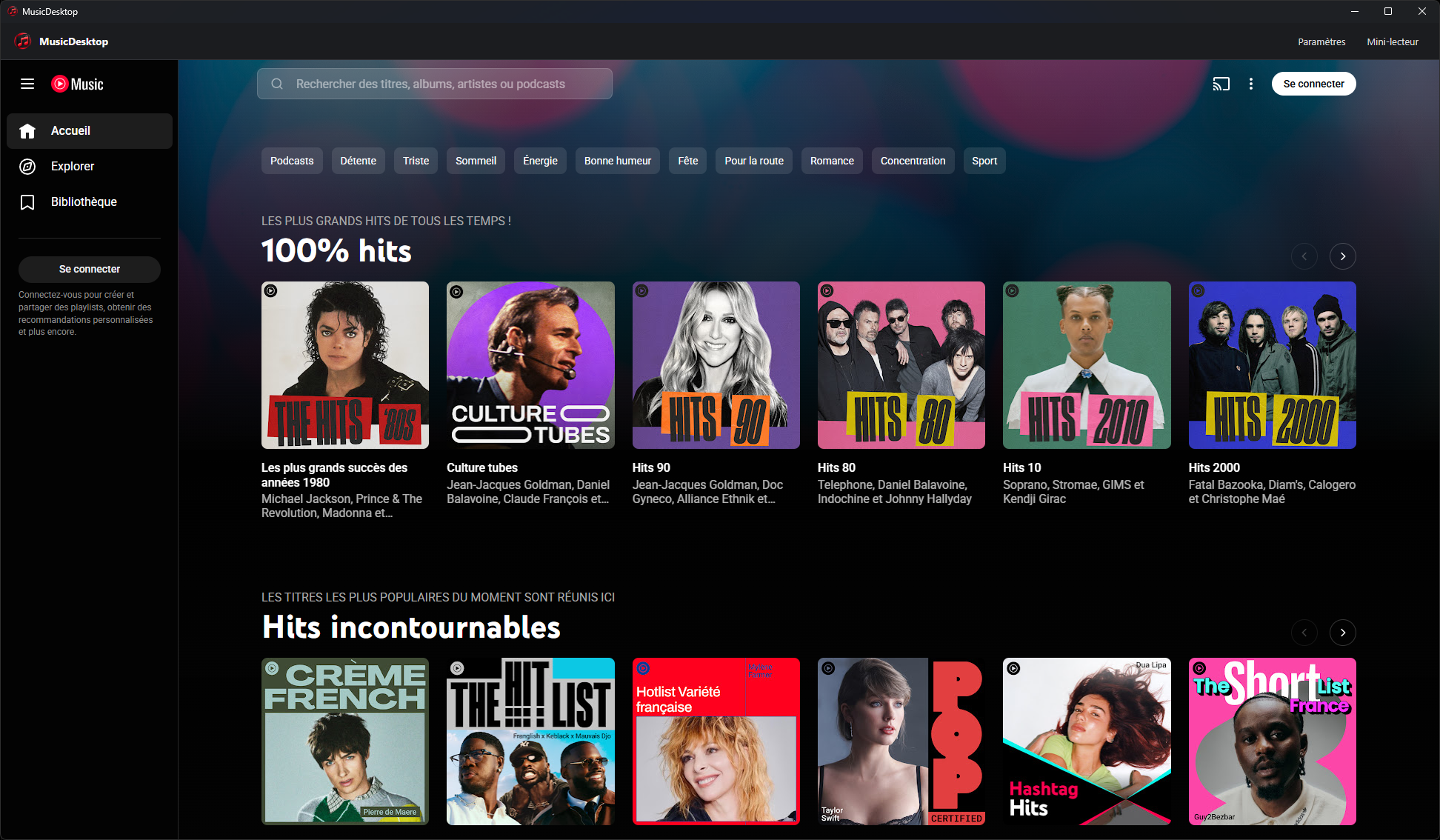
02 Choose Remote from the left-hand menu. 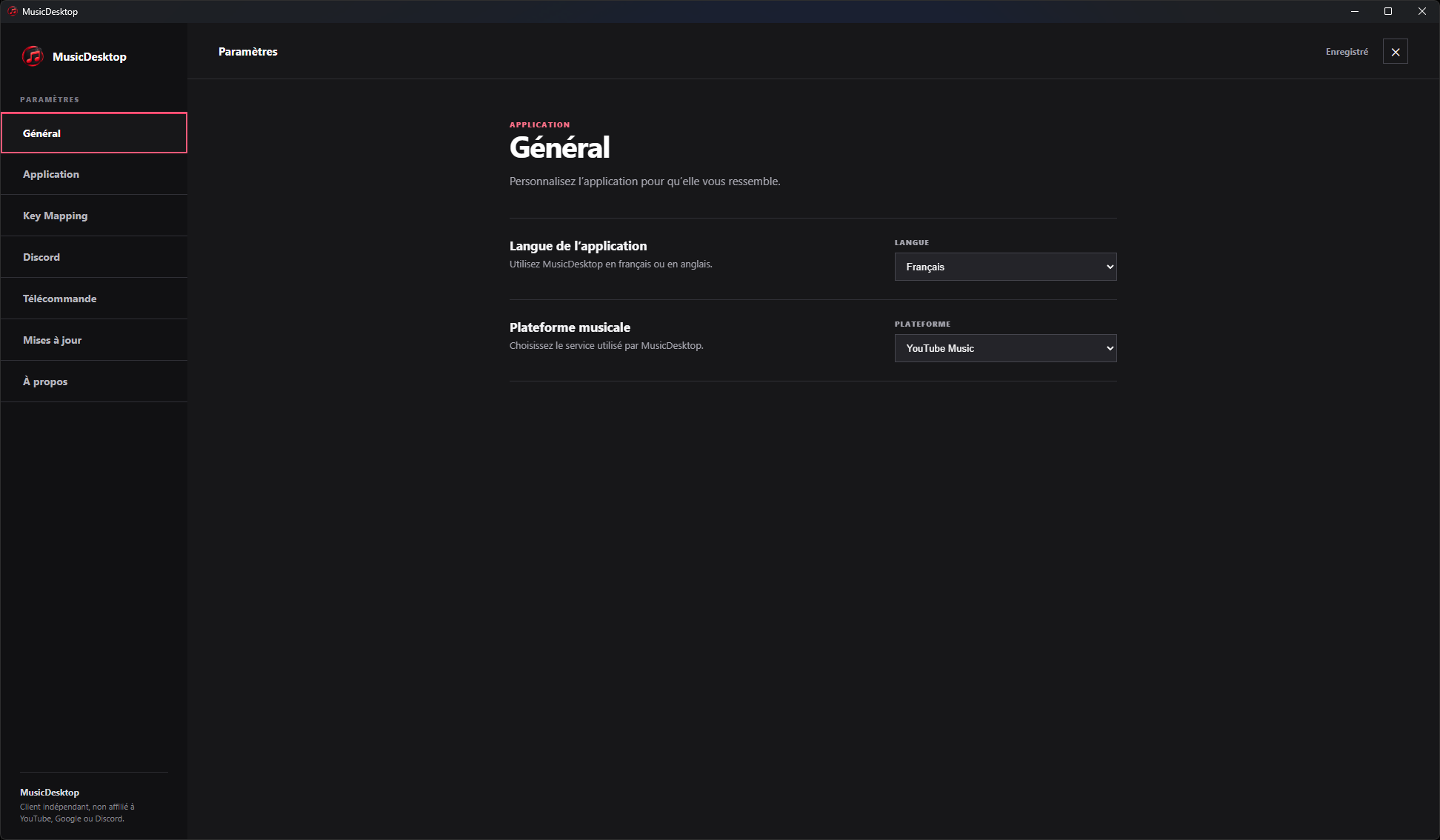
03 Create a new pairing code. 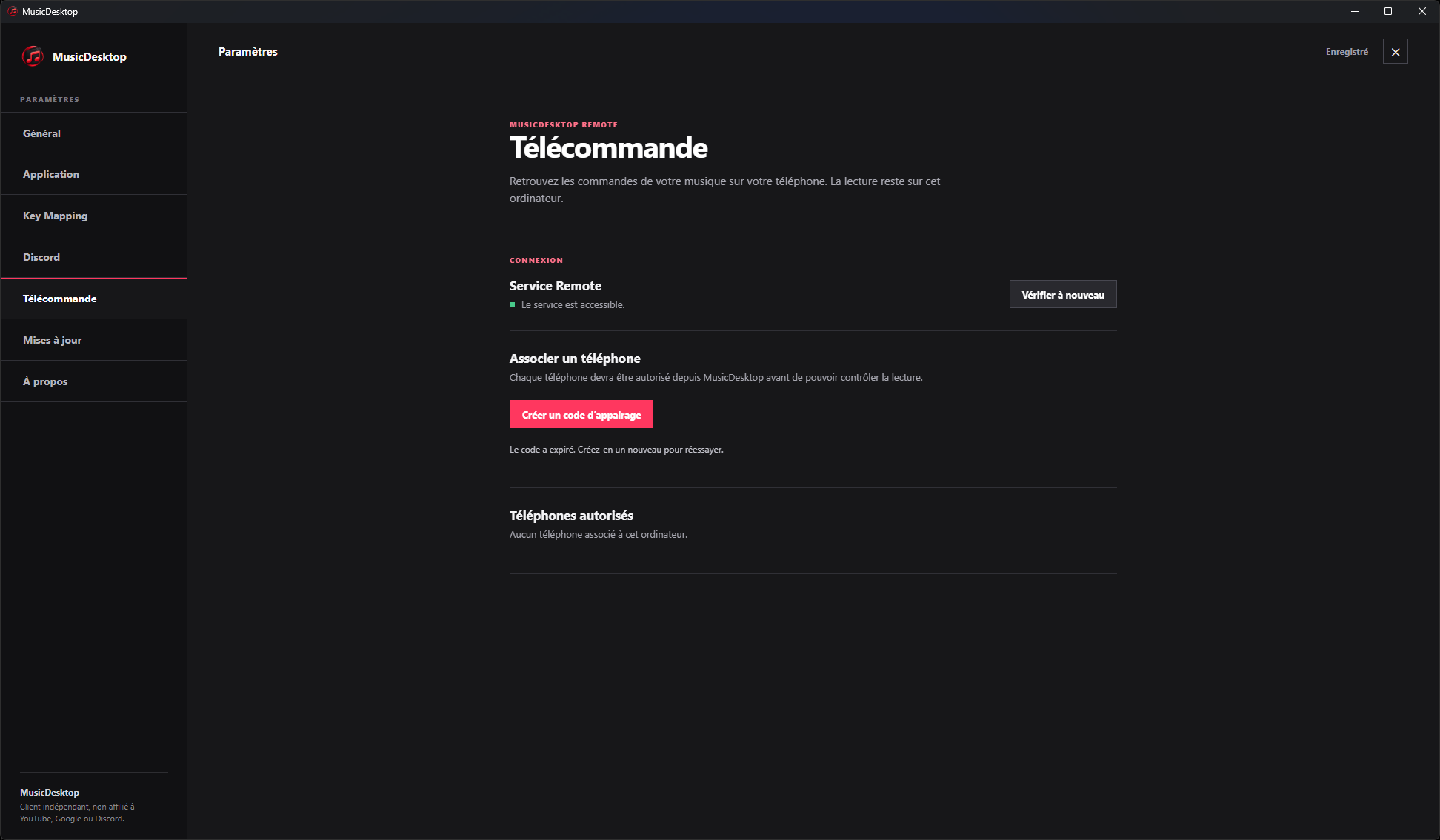
04 Keep this window open to scan the QR code or enter the displayed code. 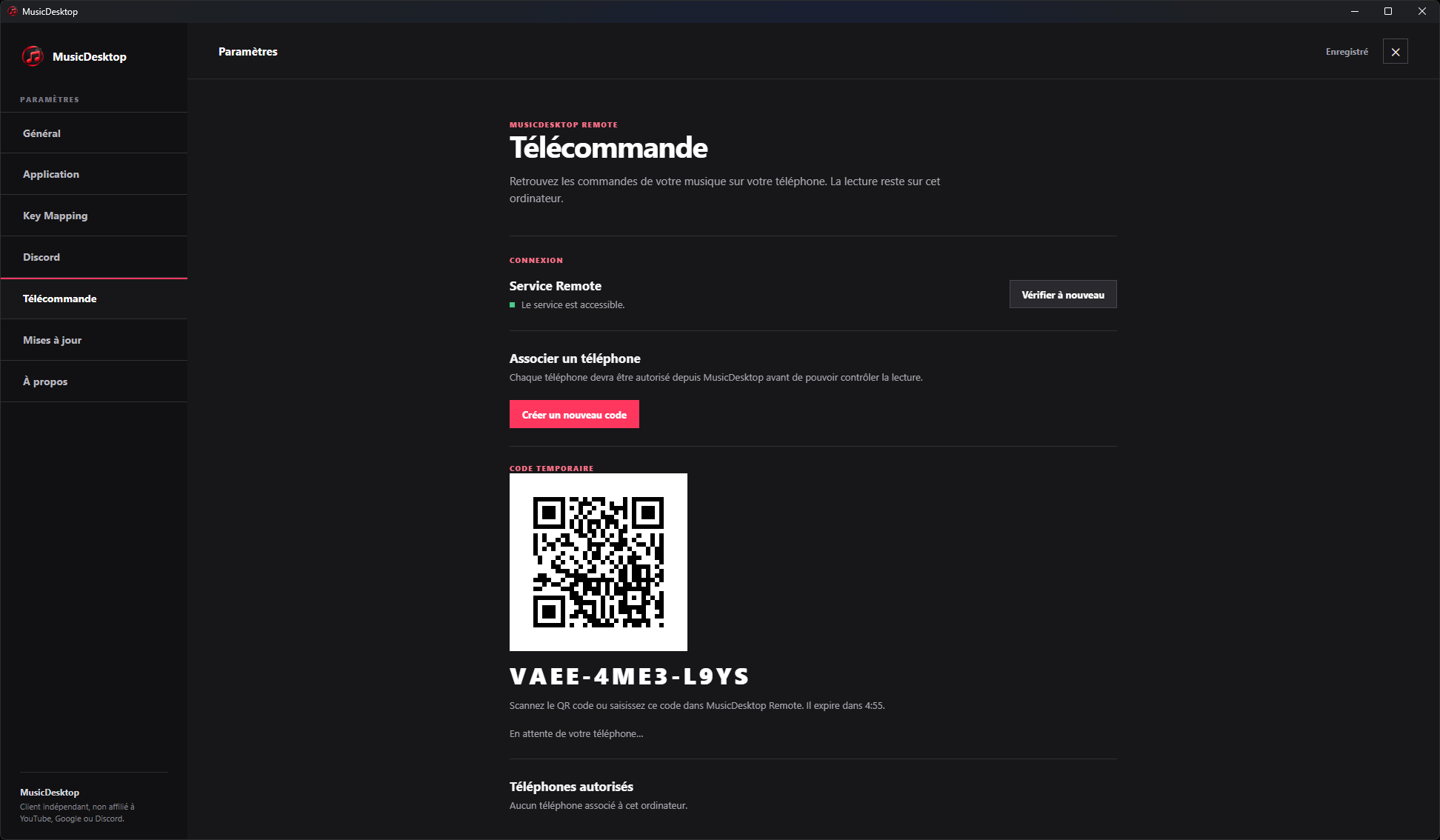
The code in this screenshot has expired. Use the one shown on your own PC.
On a smaller screen, swipe the screenshots to see the details.
-
On your phone
Send the request
In Remote, choose Scan QR code or enter the pairing code. Then tap Connect this phone.
05 Scan the QR code or type the code, then connect your phone. This screenshot shows the French interface; the highlighted controls are in the same place in English.
-
Back on your PC
Approve your phone
The request appears in MusicDesktop. Check that it is your phone, then approve it. Remote will show your PC and its playback controls.
06 Select Approve on the connection request.
Keep your code private. If it expires before you approve the request, create a new one in MusicDesktop and try again.
Reconnect automatically
Once pairing is approved, Remote remembers your PC and tries to reconnect when you reopen the app. You do not need to scan the QR code every time.
Your computer must remain on, connected to the internet, and MusicDesktop must be open. In Remote, the Settings tab lets you switch computers or unlink your phone.
If you cannot connect
“PC offline”
Check that the PC is on, MusicDesktop is open, and both devices have internet. Return to Remote and tap Retry.
Invalid or expired code
Create a new code under Settings → Remote on your PC, then scan or enter it again on your phone.
Request still pending
Return to your PC to approve the phone. If the request was rejected, create a new code and try again.
Ready to listen?
Your phone can now control MusicDesktop. If you are still stuck, we are here to help.